Last updated on January 18th, 2026 at 01:16 pm
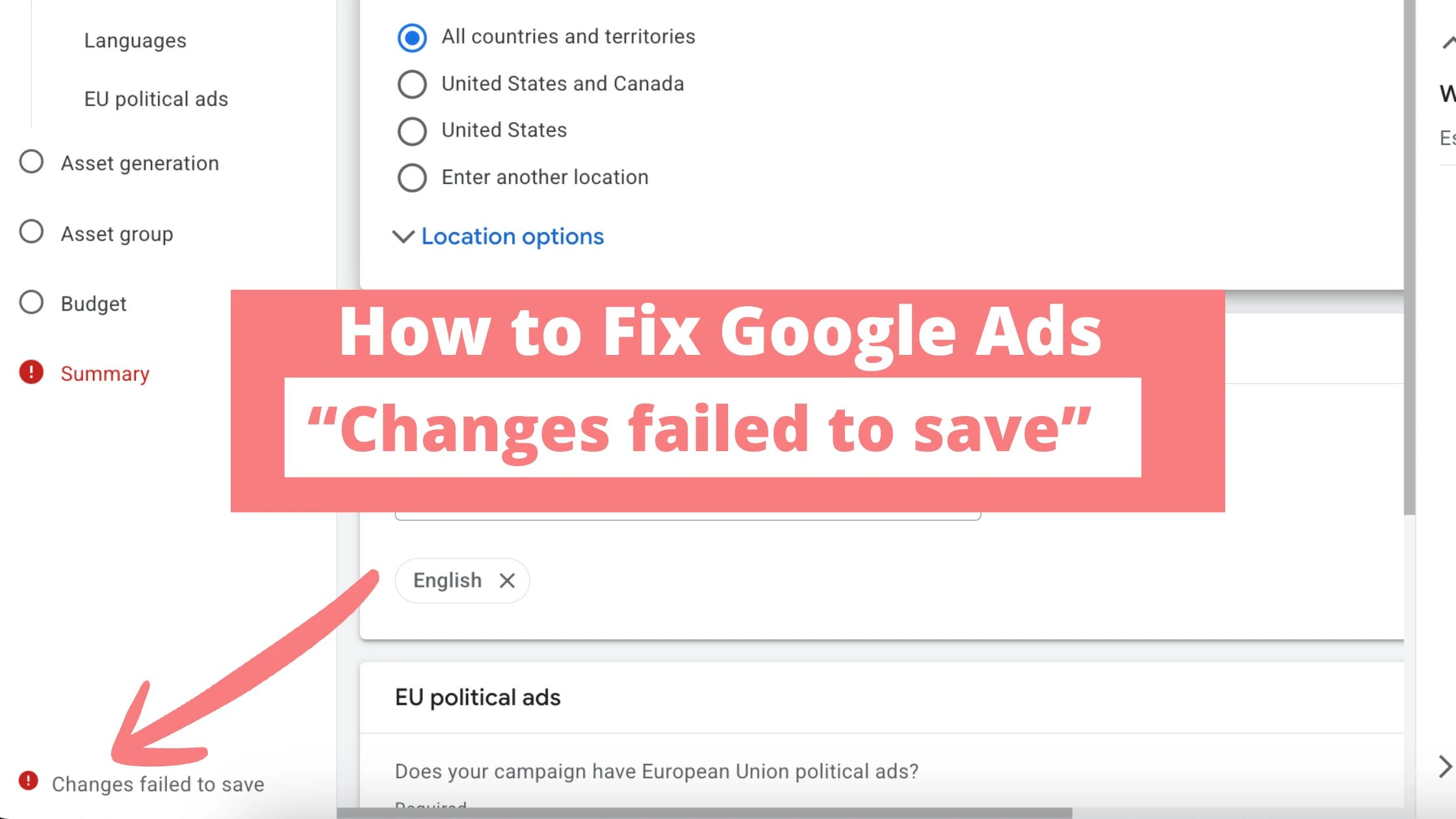
The “Changes failed to save” error appears when Google Ads cannot successfully apply your campaign edits or new campaign setup, even though the interface often shows no obvious mistake.
This is common when creating or editing search, display, Performance Max, and other standard Google Ads campaigns.
Common Causes of the Error
Several underlying issues can trigger this message when working on Google Ads campaigns, not just app campaigns.
-
Hidden validation problems, such as unsupported bid strategies, missing required fields, or invalid combinations of settings.
-
Account or access issues, including insufficient user permissions or account-level problems like billing or policy flags.
-
Session, browser, or UI glitches, especially after long editing sessions or with heavy use of extensions and ad blockers.
Check the Google Ads Status Before Assuming it’s You
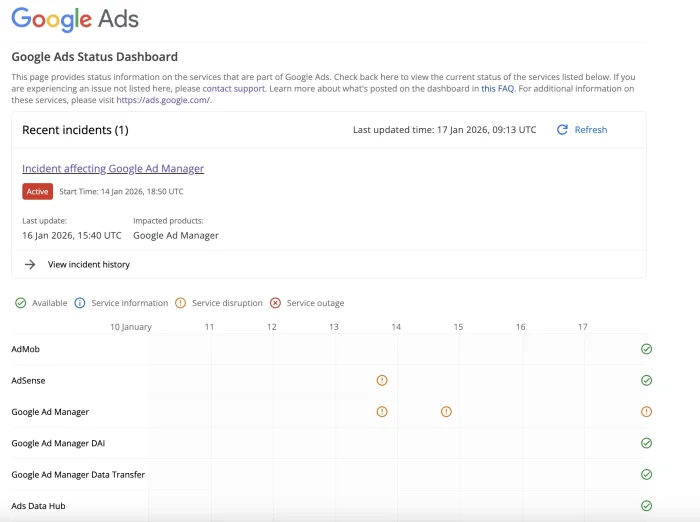
Before spending too long debugging campaign settings, verify that Google Ads itself is not experiencing an outage or incident.
-
Visit the official Google Ads Status Dashboard at https://ads.google.com/status/publisher/ to see if there are known issues affecting the UI, API, or specific components like campaign management or reporting.
-
If the dashboard shows an active incident, wait for Google to resolve it and try your changes again later; if it shows all systems “Up,” continue troubleshooting your campaign configuration and account.
Quick Checks to fix “Changes Failed to Save”
Before deep troubleshooting, run through fast, low-effort checks that often fix the error.
-
Hard-refresh the interface, sign out and back in, or try another browser/incognito window to rule out cached scripts and extensions.
-
Confirm you have at least Standard access, verify billing is active, and check for policy or suspension notices that could block changes.
Also Read: How to Fix “Listing groups item not found” in Google Ads
Campaign Settings to Review Carefully
For standard Google Ads campaigns, subtle configuration issues often sit behind this error.
-
Ensure your bidding strategy is compatible with your campaign goal, networks, and budget (for example, some strategies require conversion tracking).
-
Double-check locations, languages, start/end dates, budgets, and ad schedules for impossible or conflicting combinations that the UI does not clearly flag.
Structured Troubleshooting When the Error Persists
If quick fixes do not work, a structured, minimal approach makes the root cause easier to identify.
-
Create a very simple test campaign (basic search or Performance Max, default settings, simple targeting) to see if Google Ads will save it successfully.
-
Compare any failing campaign to a similar campaign that saves correctly, looking at bidding, budget, networks, targeting, and ad rotation line by line.
When and How to Escalate to Google Ads Support
Sometimes the problem is not your setup but a backend or account-specific bug.
-
Document the exact steps to reproduce the issue, capture screenshots, and note browser, account ID, campaign type, and time of occurrence.
-
Share these details with Google Ads Support or the Google Ads Community so they can quickly determine if the issue is a known bug or a configuration conflict.
Read Also: How to Contact Facebook Support (9 Quick & Easy Ways)
Preventing the Error in Future Campaigns
Once you have fixed the immediate problem, it helps to adjust your workflow so “Changes failed to save” is less likely to appear again. Building small process safeguards into how you work in Google Ads can prevent many configuration and browser-related issues from ever surfacing.
-
Make incremental edits and save frequently instead of changing many settings at once, so if something breaks you know exactly which change triggered the error.
-
Standardise campaign templates and naming conventions across accounts, so you are reusing known-good structures rather than rebuilding campaigns from scratch every time.
Final Thoughts
The “Changes failed to save” error is one of those frustrating moments in advertising where the system tells you something’s wrong, but not what is wrong. While there isn’t a single silver-bullet solution, the approaches above will help you narrow down the cause — and in many cases push past the error entirely.
Remember: sometimes the issue isn’t your settings at all. It’s the interface. And approaching it with patience plus a few workarounds, you can get your app campaign live without burning hours on guesswork.
Was this guide helpful?

 Primegate Digital publishes practical, step-by-step guides on social media, SEO, and digital marketing — trusted by millions of readers worldwide.
