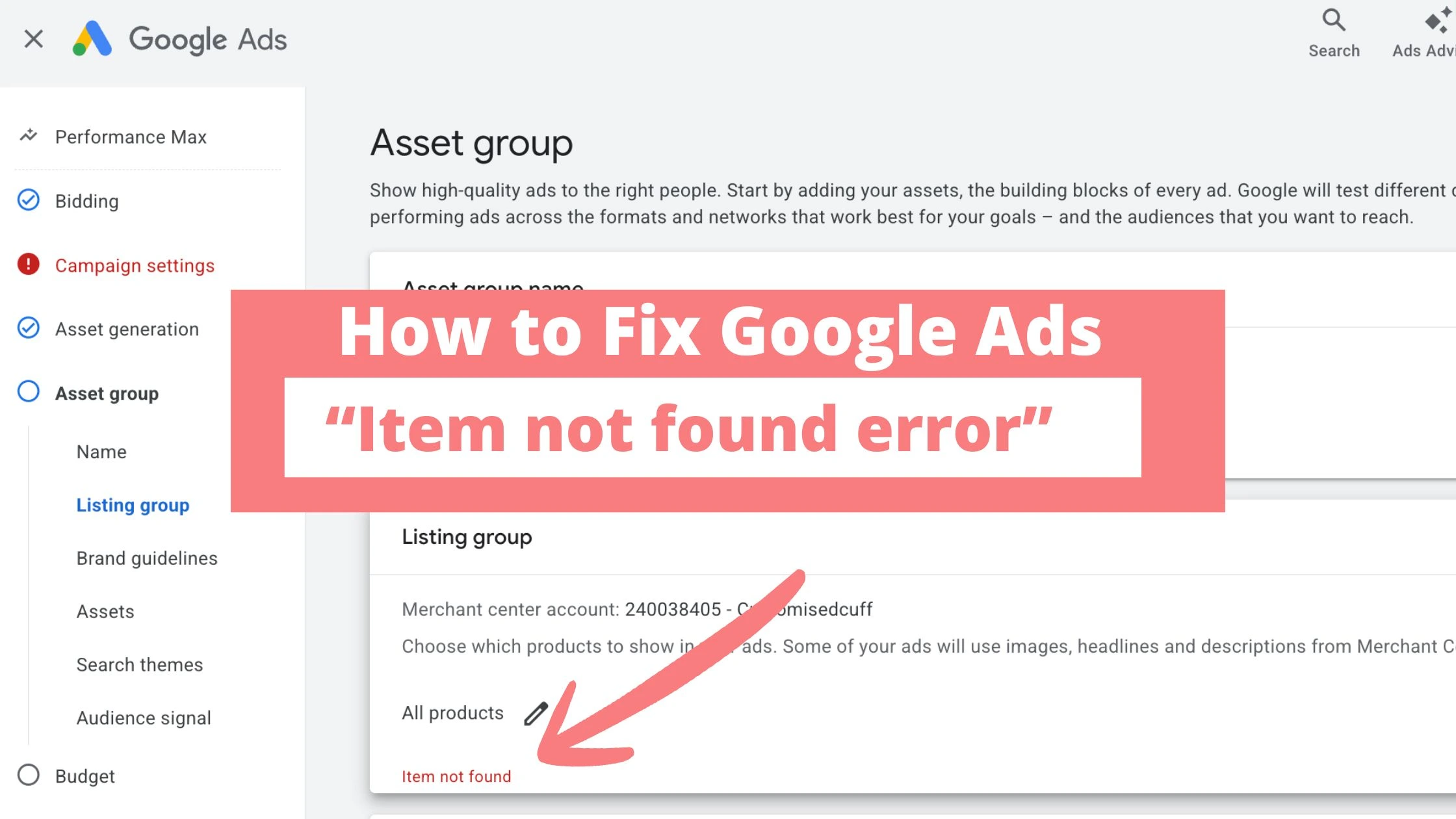
The “Listing groups item not found” error in Google Ads usually appears when managing Shopping or Performance Max campaigns that use product groups or listing groups to structure bids and reporting.
It tells you that Google Ads is trying to reference a listing group node that no longer matches a real product subdivision in your current feed or campaign structure.
For e‑commerce advertisers, this is more than a cosmetic warning: it can break bidding logic, hide products from impressions, and make performance reporting unreliable if entire branches of your listing groups become orphaned.
Check if Google Ads Manager is Experiencing an Outage
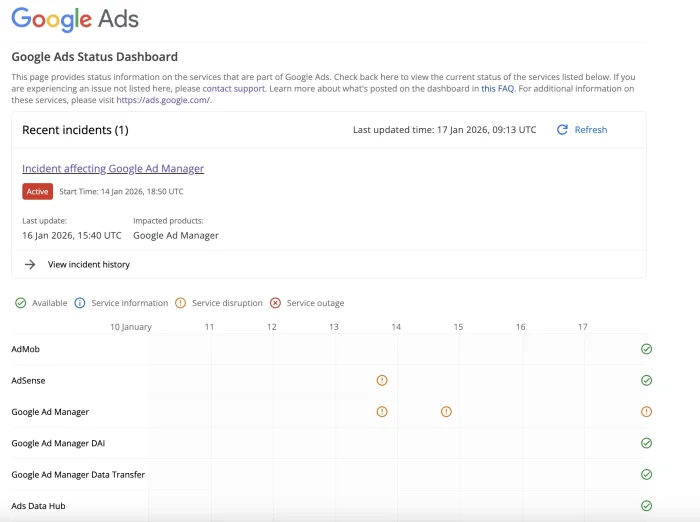
Before spending too long debugging campaign or feed settings, confirm that Google’s ad platforms are not having a wider technical incident.
-
Visit the official Google Ads Status Dashboard at https://ads.google.com/status/publisher/ to see if there are current incidents affecting Google Ads, Google Ad Manager, or related components.
-
If the dashboard shows an active issue (Warn or Down) for campaign management or delivery, note the incident and wait for the status to return to “Up” before assuming the problem is caused by your own configuration.
Main Causes Inside Merchant Center and Feeds
Most root causes sit in the data layer, especially in Google Merchant Center and your product feeds.
-
Feed updates may change or remove item IDs, categories, brands, or custom labels that your listing groups depend on, leaving groups that no longer match any active products.
-
Products can become disapproved, expired, or paused, so Google Ads finds a listing group definition but no eligible products to populate it, which can trigger “item not found” behaviour.
Because Shopping and Performance Max rely heavily on accurate product data, even a “simple” change in SKU, GTIN, or primary feed configuration can break carefully built listing group trees overnight.
Structural issues Inside Google Ads campaigns
The second major cause is structural changes made directly in Google Ads.
-
When advertisers delete or merge listing group branches, any saved references, rules, or scripts pointing at the old nodes can start failing with “listing groups item not found.”
-
Large‑scale bulk edits or automated rules that rebuild product groups may unintentionally leave behind empty, invalid, or partially created listing groups.
If you manage multiple Shopping or Performance Max campaigns, it is common for one team member to adjust listing groups while another continues to use old item IDs in spreadsheets, scripts, or bid strategies, causing conflicts.
Read Also: Fixing “Changes Failed to Save” When Creating Google Ad Campaigns
Checklist to Fix “Listing groups item not found” in Google Ads
Working through a structured process helps you resolve the error quickly while protecting performance.
-
Confirm affected campaigns and ad groups
-
Identify exactly which Shopping or Performance Max campaigns show the “listing groups item not found” message.
-
Note whether it is tied to a specific ad group, asset group, or listing group subdivision.
-
-
Validate products in Merchant Center
-
In Merchant Center, check Diagnostics and individual product status for the SKUs you expect inside the broken listing group.
-
Ensure those products are approved, not expired, and still using the same item IDs, brand, category, or custom labels that your listing group logic assumes.
-
-
Rebuild or realign listing groups
-
In the affected campaign, open the Listing groups or Product groups view and look for nodes that show zero items, warnings, or greyed‑out branches.
-
Remove invalid branches and recreate them by subdividing based on up‑to‑date attributes such as brand, product type, or custom labels, then save your changes.
-
-
Clean up scripts and bulk sheets
-
Review any scripts, rules, or bulk upload templates that reference old item IDs or listing group paths.
-
Update those references to match the new structure so they do not keep re‑creating invalid or empty listing groups.
-
Following this checklist ensures the error is fixed at both the data and campaign levels, rather than just hiding the warning temporarily.
Preventing “item not found” Issues in Future
Prevention is the most scalable strategy, especially for large catalogues and multi‑market accounts.
-
Keep a shared ID and taxonomy map so when your dev or catalogue team changes SKUs, product types, or labels, the performance team immediately knows which campaigns and listing groups to update.
-
Schedule regular feed and structure audits, checking that high‑spend campaigns still have valid listing groups populated with eligible products and that no important branches are sitting at zero items.
By combining solid feed hygiene, disciplined campaign structure, and clear documentation, you significantly reduce the chance of ever seeing “Listing groups item not found” again while also making your Shopping and Performance Max campaigns easier to scale and optimize over time.
Conclusion
Resolving the “Listing groups item not found” error ultimately comes down to aligning three things: clean product data, a stable listing‑group structure, and a disciplined workflow around changes.
By regularly auditing your Merchant Center feed, keeping item IDs and attributes consistent, and rebuilding any broken listing groups, you ensure that every branch of your Shopping or Performance Max setup is backed by real, eligible products.
Treat this error as an early warning sign rather than just an annoyance. When you combine structured troubleshooting, careful use of bulk edits and scripts, and quick checks of the Google Ads status dashboard during suspicious behaviour, you minimise downtime and protect performance while scaling profitable campaigns with confidence.
Was this guide helpful?

 Primegate Digital publishes practical, step-by-step guides on social media, SEO, and digital marketing — trusted by millions of readers worldwide.
